Manjaro command line

Command Line

  • 列出目录下的所有文件夹的及文件,规整
    • ls -laR /etc/X11/
  • 查看安装的驱动
    • inxi -G
  • 查看各文件大小
    • du [-abcDhHklmsSx] [-L <符号连接>][-X <文件>][--block-size][--exclude=<目录或文件>] [--max-depth=<目录层数>][--help][--version][目录或文件]
    • eg. sudo du -h --max-depth=1
  • smb://ganglion/disk1

Docker

https://wiki.archlinux.org/index.php/Docker_(%E7%AE%80%E4%BD%93%E4%B8%AD%E6%96%87)

https://zhuanlan.zhihu.com/p/65696014

https://blog.csdn.net/github_36749622/article/details/83094601

Colab

https://medium.com/deep-learning-turkey/google-colab-free-gpu-tutorial-e113627b9f5d

https://juejin.im/post/5c05e1bc518825689f1b4948

  • 设置GPU

  • 授权和切换工作路径

1
2
3
4
5
6
7
8
9
10
11
12
13
14
15
!apt-get install -y -qq software-properties-common python-software-properties module-init-tools
!add-apt-repository -y ppa:alessandro-strada/ppa 2>&1 > /dev/null
!apt-get update -qq 2>&1 > /dev/null
!apt-get -y install -qq google-drive-ocamlfuse fuse
from google.colab import auth
auth.authenticate_user()
from oauth2client.client import GoogleCredentials
creds = GoogleCredentials.get_application_default()
import getpass
!google-drive-ocamlfuse -headless -id={creds.client_id} -secret={creds.client_secret} < /dev/null 2>&1 | grep URL
vcode = getpass.getpass()
!echo {vcode} | google-drive-ocamlfuse -headless -id={creds.client_id} -secret={creds.client_secret}

!mkdir -p drive
!google-drive-ocamlfuse drive
1
2
3
4
5
import os

path = "/content/drive/OpenNMT/...(dirs...)"
os.chdir(path)
os.listdir(path)
  • 安装anaconda环境,配置conda env
    1
    https://facebookresearch.github.io/TensorComprehensions/installation_colab_research.html

Vim

vim for python

. sp / vs 分屏

  • sp / vs 后 检索打开的文件

  • 垂直方向分屏: sp

  • 水平方向分屏:vs

. ls / b 阅览与打开历史打开文件

  • 打开最近打开列表::ls

  • 打开对应编号的文件:b

. 空格折叠

  • .vimrc: nnoremap za
  • Plugin 'tmhedberg/SimpylFold'(未安装成功)

Git

http://www.ruanyifeng.com/blog/2015/12/git-cheat-sheet.html
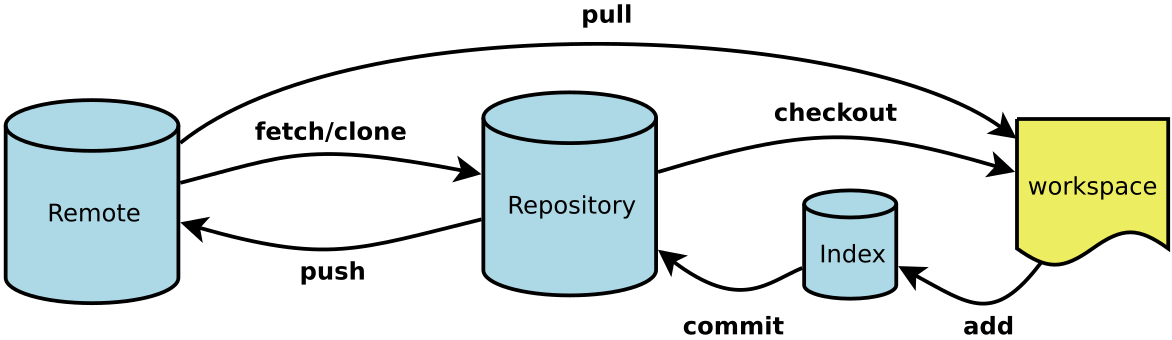
img
img

新建代码库

1
2
3
4
5
6
7
8
# 在当前目录新建一个Git代码库
$ git init

# 新建一个目录,将其初始化为Git代码库
$ git init [project-name]

# 下载一个项目和它的整个代码历史
$ git clone [url]

配置

Git的设置文件为.gitconfig,它可以在用户主目录下(全局配置),也可以在项目目录下(项目配置)。

1
2
3
4
5
6
7
8
9
# 显示当前的Git配置
$ git config --list

# 编辑Git配置文件
$ git config -e [--global]

# 设置提交代码时的用户信息
$ git config [--global] user.name "[name]"
$ git config [--global] user.email "[email address]"

增加/删除文件

1
2
3
4
5
6
7
8
9
10
11
12
13
14
15
16
17
18
19
20
21
# 添加指定文件到暂存区
$ git add [file1] [file2] ...

# 添加指定目录到暂存区,包括子目录
$ git add [dir]

# 添加当前目录的所有文件到暂存区
$ git add .

# 添加每个变化前,都会要求确认
# 对于同一个文件的多处变化,可以实现分次提交
$ git add -p

# 删除工作区文件,并且将这次删除放入暂存区
$ git rm [file1] [file2] ...

# 停止追踪指定文件,但该文件会保留在工作区
$ git rm --cached [file]

# 改名文件,并且将这个改名放入暂存区
$ git mv [file-original] [file-renamed]

代码提交

1
2
3
4
5
6
7
8
9
10
11
12
13
14
15
16
17
18
# 提交暂存区到仓库区
$ git commit -m [message]

# 提交暂存区的指定文件到仓库区
$ git commit [file1] [file2] ... -m [message]

# 提交工作区自上次commit之后的变化,直接到仓库区
$ git commit -a

# 提交时显示所有diff信息
$ git commit -v

# 使用一次新的commit,替代上一次提交
# 如果代码没有任何新变化,则用来改写上一次commit的提交信息
$ git commit --amend -m [message]

# 重做上一次commit,并包括指定文件的新变化
$ git commit --amend [file1] [file2] ...

分支

1
2
3
4
5
6
7
8
9
10
11
12
13
14
15
16
17
18
19
20
21
22
23
24
25
26
27
28
29
30
31
32
33
34
35
36
37
38
39
40
41
42
# 列出所有本地分支
$ git branch

# 列出所有远程分支
$ git branch -r

# 列出所有本地分支和远程分支
$ git branch -a

# 新建一个分支,但依然停留在当前分支
$ git branch [branch-name]

# 新建一个分支,并切换到该分支
$ git checkout -b [branch]

# 新建一个分支,指向指定commit
$ git branch [branch] [commit]

# 新建一个分支,与指定的远程分支建立追踪关系
$ git branch --track [branch] [remote-branch]

# 切换到指定分支,并更新工作区
$ git checkout [branch-name]

# 切换到上一个分支
$ git checkout -

# 建立追踪关系,在现有分支与指定的远程分支之间
$ git branch --set-upstream [branch] [remote-branch]

# 合并指定分支到当前分支
$ git merge [branch]

# 选择一个commit,合并进当前分支
$ git cherry-pick [commit]

# 删除分支
$ git branch -d [branch-name]

# 删除远程分支
$ git push origin --delete [branch-name]
$ git branch -dr [remote/branch]

标签

1
2
3
4
5
6
7
8
9
10
11
12
13
14
15
16
17
18
19
20
21
22
23
24
25
26
# 列出所有tag
$ git tag

# 新建一个tag在当前commit
$ git tag [tag]

# 新建一个tag在指定commit
$ git tag [tag] [commit]

# 删除本地tag
$ git tag -d [tag]

# 删除远程tag
$ git push origin :refs/tags/[tagName]

# 查看tag信息
$ git show [tag]

# 提交指定tag
$ git push [remote] [tag]

# 提交所有tag
$ git push [remote] --tags

# 新建一个分支,指向某个tag
$ git checkout -b [branch] [tag]

查看信息

1
2
3
4
5
6
7
8
9
10
11
12
13
14
15
16
17
18
19
20
21
22
23
24
25
26
27
28
29
30
31
32
33
34
35
36
37
38
39
40
41
42
43
44
45
46
47
48
49
50
51
52
53
54
55
56
57
58
59
60
# 显示有变更的文件
$ git status

# 显示当前分支的版本历史
$ git log

# 显示commit历史,以及每次commit发生变更的文件
$ git log --stat

# 搜索提交历史,根据关键词
$ git log -S [keyword]

# 显示某个commit之后的所有变动,每个commit占据一行
$ git log [tag] HEAD --pretty=format:%s

# 显示某个commit之后的所有变动,其"提交说明"必须符合搜索条件
$ git log [tag] HEAD --grep feature

# 显示某个文件的版本历史,包括文件改名
$ git log --follow [file]
$ git whatchanged [file]

# 显示指定文件相关的每一次diff
$ git log -p [file]

# 显示过去5次提交
$ git log -5 --pretty --oneline

# 显示所有提交过的用户,按提交次数排序
$ git shortlog -sn

# 显示指定文件是什么人在什么时间修改过
$ git blame [file]

# 显示暂存区和工作区的差异
$ git diff

# 显示暂存区和上一个commit的差异
$ git diff --cached [file]

# 显示工作区与当前分支最新commit之间的差异
$ git diff HEAD

# 显示两次提交之间的差异
$ git diff [first-branch]...[second-branch]

# 显示今天你写了多少行代码
$ git diff --shortstat "@{0 day ago}"

# 显示某次提交的元数据和内容变化
$ git show [commit]

# 显示某次提交发生变化的文件
$ git show --name-only [commit]

# 显示某次提交时,某个文件的内容
$ git show [commit]:[filename]

# 显示当前分支的最近几次提交
$ git reflog

远程同步

1
2
3
4
5
6
7
8
9
10
11
12
13
14
15
16
17
18
19
20
21
22
23
# 下载远程仓库的所有变动
$ git fetch [remote]

# 显示所有远程仓库
$ git remote -v

# 显示某个远程仓库的信息
$ git remote show [remote]

# 增加一个新的远程仓库,并命名
$ git remote add [shortname] [url]

# 取回远程仓库的变化,并与本地分支合并
$ git pull [remote] [branch]

# 上传本地指定分支到远程仓库
$ git push [remote] [branch]

# 强行推送当前分支到远程仓库,即使有冲突
$ git push [remote] --force

# 推送所有分支到远程仓库
$ git push [remote] --all

撤销

1
2
3
4
5
6
7
8
9
10
11
12
13
14
15
16
17
18
19
20
21
22
23
24
25
26
27
28
29
30
31
# 恢复暂存区的指定文件到工作区
$ git checkout [file]

# 恢复某个commit的指定文件到暂存区和工作区
$ git checkout [commit] [file]

# 恢复暂存区的所有文件到工作区
$ git checkout .

# 重置暂存区的指定文件,与上一次commit保持一致,但工作区不变
$ git reset [file]

# 重置暂存区与工作区,与上一次commit保持一致
$ git reset --hard

# 重置当前分支的指针为指定commit,同时重置暂存区,但工作区不变
$ git reset [commit]

# 重置当前分支的HEAD为指定commit,同时重置暂存区和工作区,与指定commit一致
$ git reset --hard [commit]

# 重置当前HEAD为指定commit,但保持暂存区和工作区不变
$ git reset --keep [commit]

# 新建一个commit,用来撤销指定commit
# 后者的所有变化都将被前者抵消,并且应用到当前分支
$ git revert [commit]

# 暂时将未提交的变化移除,稍后再移入
$ git stash
$ git stash pop

其他

1
2
# 生成一个可供发布的压缩包
$ git archive

pacman

sudo pacman-mirrors --fasttrack && sudo pacman -Syyu

pacman -S package_name # 安装软件 pacman -S extra/package_name # 安装不同仓库中的版本 pacman -Syu # 升级整个系统,y是更新数据库,yy是强制更新,u是升级软件 pacman -Ss string # 在包数据库中查询软件 pacman -Si package_name # 显示软件的详细信息 pacman -Sc # 清除软件缓存,即/var/cache/pacman/pkg目录下的文件 pacman -R package_name # 删除单个软件 pacman -Rs package_name # 删除指定软件及其没有被其他已安装软件使用的依赖关系 pacman -Qs string # 查询已安装的软件包 pacman -Qi package_name # 查询本地安装包的详细信息 pacman -Ql package_name # 获取已安装软件所包含的文件的列表 pacman -U package.tar.zx # 从本地文件安装 pactree package_name # 显示软件的依赖树

列出已经安装的软件包👇

pacman -Q 查看virtualbox包是否已经安装👇

pacman -Q virtualbox 查看已安装的包virtualbox的详细信息👇

pacman -Qi virtualbox 列出已安装包virtualbox的所有文件👇

pacman -Ql virtualbox 查找某个文件属于哪个包👇

pacman -Qo /etc/passwd 查询包组👇

pacman -Sg 查询包组所包含的软件包👇

pacman -Sg gnome 搜索virtualbox相关的包👇

pacman -Ss virtualbox 从数据库中搜索virtualbox的信息👇

pacman -Si virtualbox 仅同步源👇

sudo pacman -Sy 更新系统👇

sudo pacman -Su 同步源并更新系统👇

sudo pacman -Syu 同步源后安装包👇

sudo pacman -Sy virtualbox 从本地数据库中获取virtualbox的信息,并下载安装👇

sudo pacman -S virtualbox 强制安装virtualbox包👇

sudo pacman -Sf virtualbox 删除virtualbox👇

sudo pacman -R virtualbox 强制删除被依赖的包(慎用)👇

sudo pacman -Rd virtualbox 删除virtualbox包及依赖其的包👇

sudo pacman -Rc virtualbox 删除virtualbox包及其依赖的包👇

sudo pacman -Rsc virtualbox 清理/var/cache/pacman/pkg目录下的旧包👇

sudo pacman -Sc 清除所有下载的包和数据库👇

sudo pacman -Scc 安装下载的virtualbox包(有时候需要降级包的时候就用这个)👇

cd /var/cache/pacman/pkg

sudo pacman -U virtualbox-5.2.12-1-x86_64.pkg.tar.xz 升级时不升级virtualbox包👇

sudo pacman -Su --ignore virtualbox 详细请转向:https://wiki.archlinux.org/index.php/Pacman_(简体中文)

conda

0.获取版本号 conda --version

​ conda -V

1.获取帮助 conda --help conda -h 查看某一命令的帮助,如update命令及remove命令 conda update --help conda remove --help 同理,以上命令中的--help也可以换成-h。

2.环境管理 查看环境管理的全部命令帮助 conda env -h

创建环境 conda create --name your_env_name 输入y确认创建。

创建制定python版本的环境 conda create --name your_env_name python=2.7 conda create --name your_env_name python=3 conda create --name your_env_name python=3.5

创建包含某些包的环境 conda create --name your_env_name numpy scipy

创建指定python版本下包含某些包的环境 conda create --name your_env_name python=3.5 numpy scipy

列举当前所有环境 conda info --envs conda env list

进入某个环境 activate your_env_name

退出当前环境 deactivate

复制某个环境 conda create --name new_env_name --clone old_env_name

删除某个环境 conda remove --name your_env_name --all

4.包管理 列举当前活跃环境下的所有包 conda list

列举一个非当前活跃环境下的所有包 conda list -n your_env_name

为指定环境安装某个包 conda install -n env_name package_name

如果不能通过conda install来安装,文档中提到可以从Anaconda.org安装,但我觉得会更习惯用pip直接安装。pip在Anaconda中已安装好,不需要单独为每个环境安装pip。如需要用pip管理包,activate环境后直接使用即可。

5.清理包

​ conda clean --all

Reboot

.i3/config

~/.zshrc

~/command.md

/etc/fstab

~/.vimrc

ganglion 挂载

smb://ganglion/disk1

For Nvidia-GPU

https://blog.csdn.net/qq_39828850/article/details/87919188